
The solution is, as almost always, to keep your PC patched and up to date.
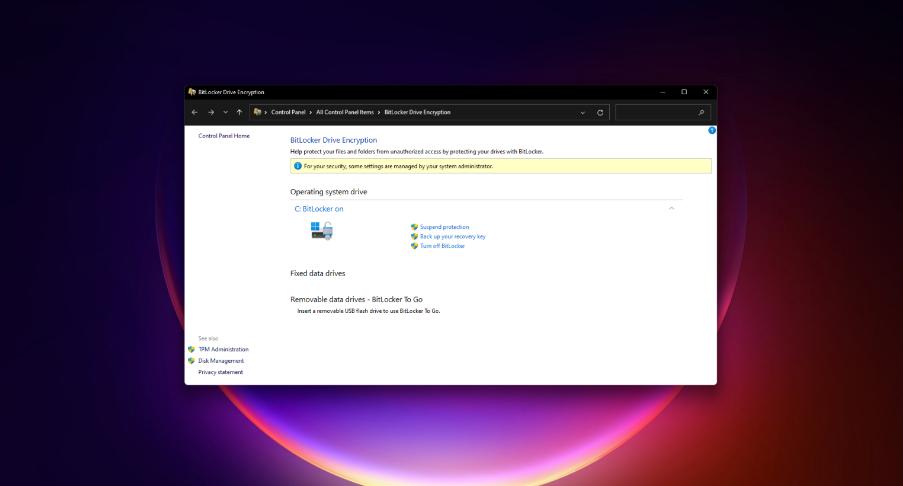
Microsoft is warning that Windows 11 is subject to a bug that can cause data damage under certain specialized conditions, including writing data to encrypted drives using BitLocker. Unfortunately, the fix is slightly concerning, as Microsoft warns that it will slow performance for about a month or so.
The functions affected are two you’ve probably never heard of: either the AES XEX-based tweaked-codebook mode with ciphertext stealing (AES-XTS) or the AES with Galois/Counter Mode (GCM) (AES-GCM). As Toms’ Hardware noted, the processors impacted include Intel’s 10th-gen “Ice Lake” and 11th-gen “Rocket Lake” processors plus AMD’s upcoming Zen 4 chips, otherwise known as the Ryzen 7000.
The problem is that both functions are used for data encryption and AES-XTS was specifically added to Windows 10 as the function underlying BitLocker encryption. BitLocker works with your PC’s Trusted Platform Module (or TPM) to encrypt and protect your drive — if your laptop is lost or stolen, an attacker wouldn’t be able to access your data without your PIN, your fingerprint, or your face via Windows Hello. The function is also used to secure encrypted flash drives, too.
If there’s any good news, it’s that keeping your PC up to date may have mitigated the data-damage problem entirely. For one, Microsoft’s security note implies that only the original release of Windows 11 is susceptible and that the issue was “addressed” via a security release in June.
The other concern, however, is that Microsoft’s note warns that performance might be slowed for about one month after applying the update. (Microsoft does not explain why this is, or why the one-month period was chosen.) The affected applications include BitLocker plus enterprise load balancers and disk throughput on enterprise PCs.
If you’ve done the math, though, that puts the end of that degraded-performance period in mid-July or so. If you’ve kept your PC up to date, you’re unlikely to be affected by either bug.
Microsoft has said previously that BitLocker is only a feature that’s built into the Pro versions of Windows 10 and Windows 11. If you’ve signed into a Windows 11 Pro PC with your Microsoft account, BitLocker is on by default. However, even Windows 11 Home PCs can use Windows’ built-in “device encryption.” It’s not clear whether or not Device Encryption uses the AES-XTS function or not.
An easy way to check if your PC has BitLocker is to simply open the Start menu and type “Manage BitLocker” into the search box. If your PC does have BitLocker enabled, you’ll receive a Control Panel to tweak its settings. If you don’t, Windows simply won’t return the app. Make sure you have your BitLocker recovery key backed up. If you’re signed in to your Microsoft account, it’s automatically stored in your account settings, which are accessible online.
If your PC doesn’t have BitLocker, it may be eligible for device encryption anyway. Go to the Settings menu, then Update & Security > Device Encryption. If your PC can be encrypted, you’ll see a toggle to turn it off or on.
This Windows 11 Home PC is not formally encrypted via BitLocker, but is nevertheless still protected.
As a user, if you haven’t noticed any problems with your hard drive or SSD, you probably don’t need to worry. But if you’re concerned, you can always manually scan your drive’s file system for errors.
To do so, simply open File Explorer and right-click on your PC’s SSD or hard drive. The “Properties” subheading will open a menu where you can scan for errors.
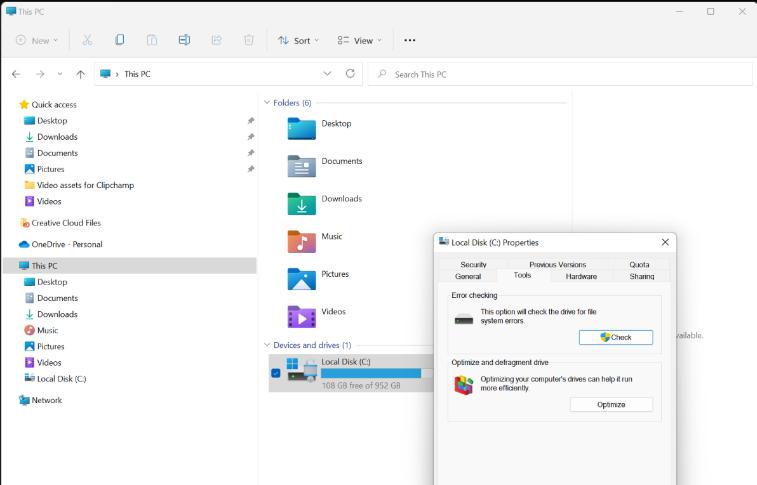
Scan your local disk for errors by right-clicking it, then selecting “Properties.”
Microsoft also has a page devoted to fixing more severe problems associated with BitLocker-encrypted drives.