wisemonkeys logo
FeedNotificationProfileManage Forms
FeedNotificationSearchSign in
wisemonkeys logo

Blogs

Install Ubuntu in Vmware

profile
Meet Darji
Jul 12, 2024
1 Like
0 Discussions
117 Reads

Step 1: Download VMware Workstation
Visit the official VMware website and download the latest version of VMware Workstation. You may need to create a VMware account and log in to access the download.

Step 2: Install VMware Workstation
Run the installer you downloaded in Step 1. Follow the on-screen instructions to install VMware Workstation on your computer. You may need to restart your system after the installation is complete.

Step 3: Download Ubuntu ISO
Visit the official Ubuntu website https://ubuntu.com/download/desktop and download the latest version of the Ubuntu Desktop ISO. Choose the appropriate architecture (32-bit or 64-bit) based on your system.

Step 4: Create a New Virtual Machine in VMware Workstation

  1. Open VMware Workstation.
    2. Click on “File” in the menu and select “New Virtual Machine.”
    3. The New Virtual Machine Wizard will open. Choose “Typical” and click “Next.”

Step 5: Specify the Ubuntu ISO

  1. Select “Installer disc image file (iso)” and click “Browse.”
    2. Navigate to the location where you saved the Ubuntu ISO file and select it.
    3. Click “Next” to proceed.

Step 6: Name and Specify Storage

  1. Enter a name for your virtual machine.
    2. Choose a location to store your virtual machine files.
    3. Specify the disk capacity (at least 25 GB is recommended).
    4. Select “Store virtual disk as a single file.”
    5. Click “Next” to continue.

Step 7: Customize Hardware (Optional)

You can customize the hardware settings if needed. Adjust the number of processors, memory, and other settings based on your system’s capabilities.

Step 8: Finish and Install

  1. Review your settings and click “Finish.”
    2. Before starting the virtual machine, you may want to go to the “Options” tab and configure additional settings if necessary.
    3. Click “Finish” to create the virtual machine.

Step 9: Start the Virtual Machine

  1. The virtual machine will boot from the Ubuntu ISO.
    2. Follow the on-screen instructions to install Ubuntu.

Step 10: Complete Ubuntu Installation

Follow the Ubuntu installation prompts, including language, keyboard layout, and disk partitioning. Once the installation is complete, restart the virtual machine.

Step 11: Install VMware Tools (Optional but recommended)

After Ubuntu is installed, it’s recommended to install VMware Tools for better integration and performance. In the VMware Workstation menu, go to “VM” -> “Install VMware Tools.” Follow the on-screen instructions within the Ubuntu virtual machine to complete the installation.

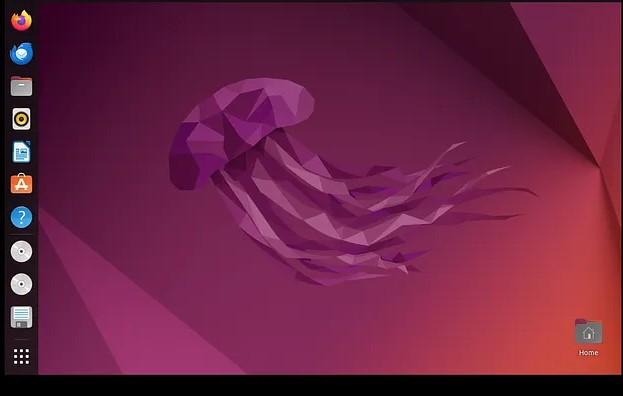
That’s it! You should now have Ubuntu installed and running in VMware Workstation on your system.

Conclusion:

This step-by-step guide has equipped you with the knowledge to seamlessly integrate Ubuntu into your computer using VMware Workstation. Virtualization not only simplifies the process of exploring different operating systems but also offers a practical solution for testing software or learning without the need for additional hardware.

By following these straightforward instructions, you’ve created a virtual environment where Ubuntu operates within your existing system. Embrace the flexibility of VMware Workstation and Ubuntu, and enjoy the benefits of a virtualized computing experience.



Comments ()


Sign in

Read Next

How To Invest In Indian Stock Market @ BSE & NSE ~ Tutorial 3

Blog banner

SMARTSHEET MANAGEMENT SOFTWARE

Blog banner

To travel is to live

Blog banner

Smartphone Security: Vulnerabilities and Attacks

Blog banner

Craziness of dream 11 and how it impacts on our life

Blog banner

Introduction to Virtual Memory - 080

Blog banner

Models of Information Security.

Blog banner

Number Guessing game --lisp

Blog banner

Python as a tool for data analysis

Blog banner

Data Science in Predictive Analytics: Transforming Business Decision-Making

Blog banner

What is HTML?

Blog banner

differentiate thinking humanly and rationally

Blog banner

Cybersecurity Standards for Automotive

Blog banner

6 Digital Marketing Trends You Must Watch Out For In 2022

Blog banner

Network Forensics

Blog banner

SECURITY RISKS OF REMOTE WORKING

Blog banner

Paralysis/Paralysis Stroke

Blog banner

OLA

Blog banner

Memory Management of Operating System(OS)

Blog banner

How To Setup DVWA Using XAMPP on Windows

Blog banner

Synchronization

Blog banner

GIS Mapping

Blog banner

GIS in Mapping and landslide alert in Bangladesh

Blog banner

MEMORY MANAGEMENT FILE

Blog banner

Importance of Morning Routines for Students During the Festive Season

Blog banner

Riddhi Miyani 53003220140

Blog banner

Evolution of Operating System

Blog banner

Hosting basics

Blog banner

LinkedIn

Blog banner

Importance of education

Blog banner

Characteristics of Etherum

Blog banner

Threat management

Blog banner

SEIZING DIGITL EVIDENCE AT THE SCENE

Blog banner

Wiretapping

Blog banner

“Shot on iPhone” : A campaign by Apple that turned into a prodigy

Blog banner

Data carving - using hex editor

Blog banner

Asana

Blog banner

Data Lake

Blog banner

File management -disha parekh

Blog banner

Real-Time Operating Systems (RTOS) Deep Explanation

Blog banner

Drawing tips for a beginner

Blog banner

Computer Security

Blog banner